What Is Twitch?
Twitch is a live streaming platform that allows you to broadcast and watch not only video games, but also talk shows, and sporting events like us! The chat functionality of Twitch helps streamers to chat with viewers in real time. Check out the options for casting twitch to another device like PC or TV.
Cast Twitch to TV from Android/iOS Using Twitch App
Chromecast is a streaming device that enables you to stream content from your smartphone or PC to tv. You can easily cast Twitch to your TV using Chromecast. After setting up Chromecast tv, the next step is to cast Twitch to tv from any of your devices. To do this:
Step 1.You have to first download the Twitch app on your Android or iOS device and follow the download instructions.
Step 2.Open the Twitch application and sign in to your account.
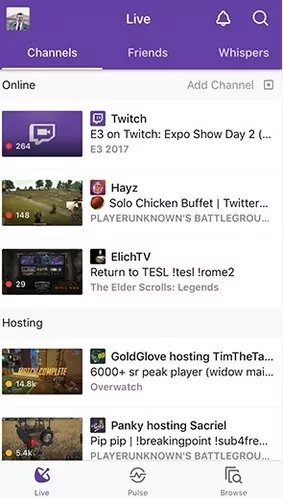
Step 3.Go ahead to select the video that you want to cast to your TV and tap on the Cast icon located in the top right corner of the screen.
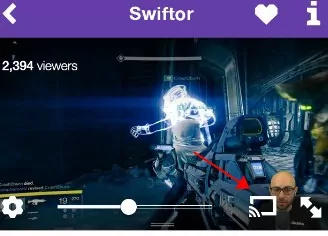
Step 4.Choose your Chromecast device from the available devices to enjoy watching your favorite streams on a larger screen.
Cast Twitch to TV from Win/Mac Using Google Chrome Browser
Casting Twitch from Windows or Mac Using Google Chrome Browser follows similar steps but there are some slight differences in some areas.
Step 1.First, Open the Google Chrome browser on your Windows or Mac computer and go to the Twitch website and sign in to your account.
Step 2.Click on the three-dot menu located in the top right corner of the browser window and select Cast from the drop-down menu.
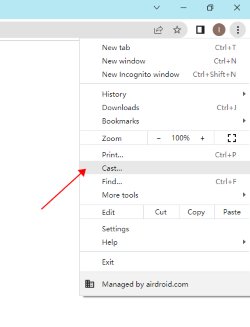
Step 3.Go ahead to choose your Chromecast device from the available devices. Wait for a little while for the video to play and enjoy watching your favorite stream on a larger tv screen using the Twitch Chromecast.
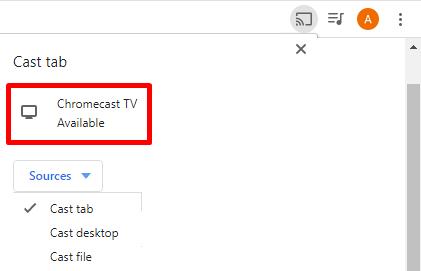
Note: if you can’t use the casting feature on Twitch, you can try AirDroid Cast. It works just as fine
Extend Twitch to TV or Monitor using a HDMI cable
Watching Twitch on Laptop you can hook the laptop to an external monitor or TV by connecting an HDMI cable from your laptop port to the TV.
If on Windows, go to Settings > Display > and ensure under Multiple Displays “Extend these Displays” is selected. Once selected can view monitors by clicking identify and move as needed.
Move twitch stream to the external device to view the stream on a monitor or TV.
Using Fire TV Stick
Connect your Fire TV Stick to your TV and ensure it is powered on. Make sure you mobile device is on the same network.
Download the Twitch app and login using your account to watch on device Fire TV Stick is connected to.
Use the Screen Mirroring feature on your mobile device to cast the Twitch app to your Fire TV. This can usually be found in settings under “Display” or “Connections.”
Screen Mirroring Apps to Cast Twitch to TV
AirDroid Cast
This app allows you to mirror Android to TV wirelessly.
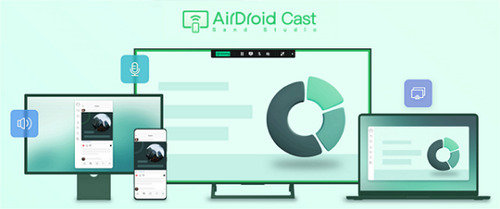
If you want to share the Twitch app content from your mobile phone to another screen, you can follow these steps:
Step 1.Start by downloading and installing the AirDroid Cast application on your mobile device. Ensure that you connect your phone device and the receiver device to the same Wi-Fi network.
Step 2.Open the web browser on the receiver device that you want to cast your Twitch app to, and navigate to webcast.airdroid.com. You should see 9 digit code or a QR code on the browser. Enter this 9 digit code on your phone, or scan the QR code using AirDroid Cast on your phone.
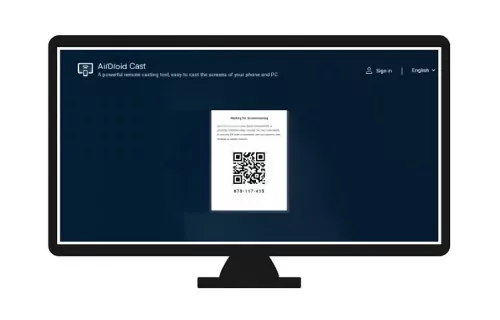
Step 3.Allow the permissions to request casting, and you are good to go.
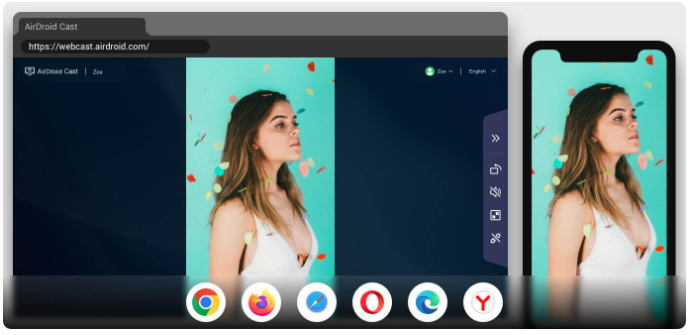
Right now, you will see the screen of your phone mirrored on the receiver device. Proceed to open the Twitch app on your Android device and play the stream content you want to cast.
AirBeamTV
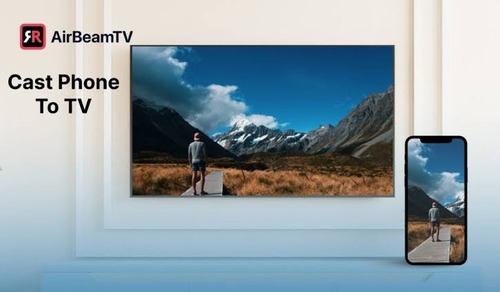
This device allows you to mirror your screen to smart TVs, gaming consoles, and other variety of different devices.
LetsView
Let’sView supports both iOS and Android devices.